What Petal Is
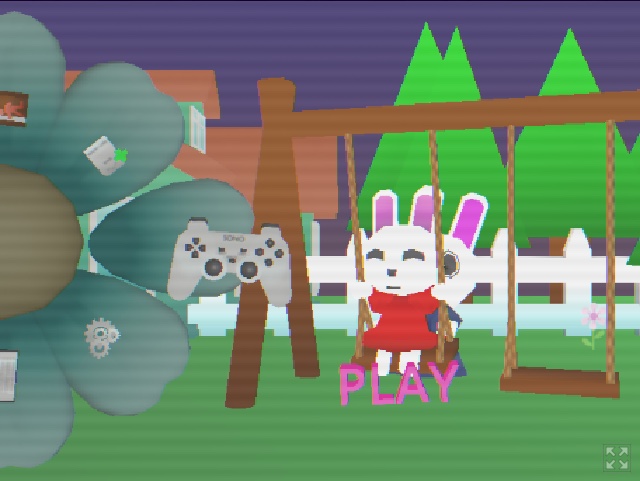
Petal is a short bilingual adventure-horror game by 13-23. Ana begins with an ordinary request from her mother: visit the local flower shop and collect fertilizer. The creator’s description immediately warns that something inside the shop is wrong and asks the player to help Ana survive. That contrast between a bright rabbit neighborhood and an unsafe shop is the verified premise; this page does not reveal an ending or turn community hints into a complete route.
The current release is an HTML5 Godot game in English and Brazilian Portuguese. Its public classification includes adventure, horror, retro, short, single-player, and stealth, with an average session described only as a few minutes. The local package matches that identity through Ana, Margarida, house, flower, box, petal, and final-scene resources, but filenames alone are not used here to publish an ordered walkthrough.
Petal was released after the developer simplified production while working without a physical keyboard. That production note explains the unusually compact scope, but it is not a statement that the controls are mouse-only: the published input is keyboard, and the current title screen also shows keyboard and controller diagrams. The guide below stays with the exact mappings published for the web release and leaves undocumented gamepad buttons to the on-screen diagrams.
Petal Beginner and Systems Guide
- Click Play on this page and wait for the Petal splash screen, progress bar, and 3D title scene. The local package is larger than a lightweight canvas game, so a short black or loading interval is not evidence that the frame has failed.
- Choose the language and start a new game from the current menu. Click inside the frame before using the keyboard so the embedded Godot canvas receives focus instead of the surrounding web page.
- Move with the arrow keys and approach doors, people, containers, pictures, and other clearly presented points of interest. Press Space to interact only when Ana is positioned close enough for the current scene to recognize the target.
- Use Tab to open the menu and to return to the previous menu. Check the current objective or held information there rather than assuming that every visible prop is a required item.
- Treat the cardboard box as a state with its own exit control. X is specifically documented as Exit Box, so use it when the next interaction requires Ana to leave cover; do not describe X as a universal cancel key for unrelated menus.
- When a scene or interaction repeats unexpectedly, pause your route and verify the current objective before collecting the same item again. The creator has acknowledged repeated interaction states in earlier public feedback, so restarting with New Game may be more reliable than building a route around an apparent duplicate.
Controls
- Move: Use the arrow keys. The public control list labels them Move in English and Mover in Portuguese.
- Interact: Press Space when Ana is close to a usable person, object, door, or scene prompt.
- Open or step back through menus: Press Tab to open the menu and return to the previous menu level.
- Hide the mouse cursor: Press F1 or the 1 key. This changes cursor visibility; it is not documented as a gameplay action.
- Exit the cardboard box: Press X while Ana is inside the box. The published wording is specifically Exit Box.
- Controller: The current title art displays a controller diagram, but the public page lists keyboard input and does not provide a complete text mapping. Follow the live title screen instead of assuming a standard layout.
Exploration, Cover, and Puzzle Boundaries
Compact exploration
The verified premise moves Ana from home toward the local flower shop. Inspect the current space carefully and use fixed camera composition, interactable placement, and scene changes as navigation evidence rather than expecting an open world.
Interaction checks
Space is the stated interaction input. Position matters in a 3D scene, so adjust Ana by a small step and face the object before deciding that a door, character, or prop is inactive.
Menu state
Tab opens the menu and also returns to the previous menu. Use that documented behavior to review state without inventing a separate Escape-key mapping.
Cardboard-box cover
The current build and creator discussion support a cardboard-box mechanic, while the official controls name X as the way to exit. This page does not claim an exact enemy detection radius, invulnerability window, or universal safe zone.
Item and potion progression
Current creator feedback discusses item collection, a potion step, and later conversation state. That supports linked puzzle progression, but not a complete recipe, guaranteed item order, or bug-free objective chain.
Language support
English and Brazilian Portuguese are listed for the release, and the control legend presents both languages. A future Chinese localization discussion does not establish that Chinese text is already included.
Short release scope
The creator labels Petal released and describes the average session only as a few minutes. A short scope does not prove that one observed scene is the ending, and this beginner guide therefore stops before unsupported route conclusions.
Careful First-Run Tips
- Give the large Godot data pack time to load. Repeated refreshes discard current startup progress and can make a normal download look like a persistent failure.
- Keep the frame focused after clicking elsewhere on the page. If the arrow keys scroll the surrounding page, click the game canvas again before changing controls or restarting.
- Use short directional taps near interaction points. Fixed or directed camera angles can make Ana look aligned while the interaction area is still a small step away.
- Leave the box with X when an objective requires direct interaction. Remaining in cover may prevent the intended action even when Ana is visually beside the target.
- Do not repeatedly claim the same object because its scene is still available. Check the menu and the next conversation or location first; duplicate interaction has appeared in public bug feedback for earlier states of this young release.
- If objective dialogue does not advance after a completed action, refresh the frame and choose New Game before assuming a hidden solution. The developer has recommended that recovery for a previously reported progression problem.
- Do not expect mobile controls from the responsive web page. The release lists keyboard input, and the developer has publicly treated mobile support as an uncommitted possibility rather than a current feature.
Browser Notes
This page serves Petal from a complete local mirror of the current public Godot Web package: HTML, JavaScript, splash art, icons, audio worklets, PCK data, and WebAssembly. The playable frame does not load the hosting platform’s wrapper script or link back to that domain.
The package requests cross-origin-isolation-capable browser features used by Godot Web exports. The site route supplies the game locally, but browser privacy extensions, blocked WebAssembly, or disabled JavaScript can still prevent startup.
The mirrored PCK is about 74 MB and the WebAssembly runtime about 44 MB before transfer encoding. Loading time therefore depends on connection speed, cache state, and device performance.
Keyboard is the verified web input. The frame may render on a phone, but touch movement, touch interaction, mobile layout, and save compatibility are not claimed.
The surrounding page waits for a deliberate Play click before creating the iframe, preventing the large runtime from downloading while a visitor is only reading the guide.
Game Credits
- 13-23 - creator and publisher of Petal.
- The public release identifies Blender and Godot as tools used to make the game.
Credits & Fan Site Disclaimer
This is an unofficial fan-operated page for playing and understanding the current browser release. It is not affiliated with, endorsed by, or sponsored by 13-23.
Petal and its characters, code, art, audio, writing, and other assets remain the property of 13-23 and the respective rights holders. The playable frame uses a local mirror of the publicly available web build.
Petal FAQ
What are the Petal keyboard controls?
Use the arrow keys to move, Space to interact, Tab to open the menu or return to the previous menu, F1 or 1 to hide the mouse cursor, and X to exit the cardboard box.
What is Petal about?
Ana goes to a local flower shop to collect fertilizer for her mother, discovers that something inside is wrong, and must survive the short adventure-horror scenario.
Can I play Petal in English or Portuguese?
Yes. The current release lists English and Brazilian Portuguese, and its published control legend includes both languages.
Does Petal support mobile controls?
Mobile support is not verified. The release lists keyboard input, and this page does not claim touch movement or interaction.
Why might an objective fail to advance?
Earlier public feedback describes repeated item interactions and a progression state that could stall. If checking the current objective does not help, refresh and begin with New Game.
Does the embedded game send me to the original hosting page?
No. The complete Godot Web package is served locally, and the external hosting wrapper script and public domain links are not included in the playable frame.
Is this the official Petal website?
No. This is an unofficial fan-operated page. Petal belongs to 13-23 and the respective rights holders.