What Budgie's Bug Shop Demo Is
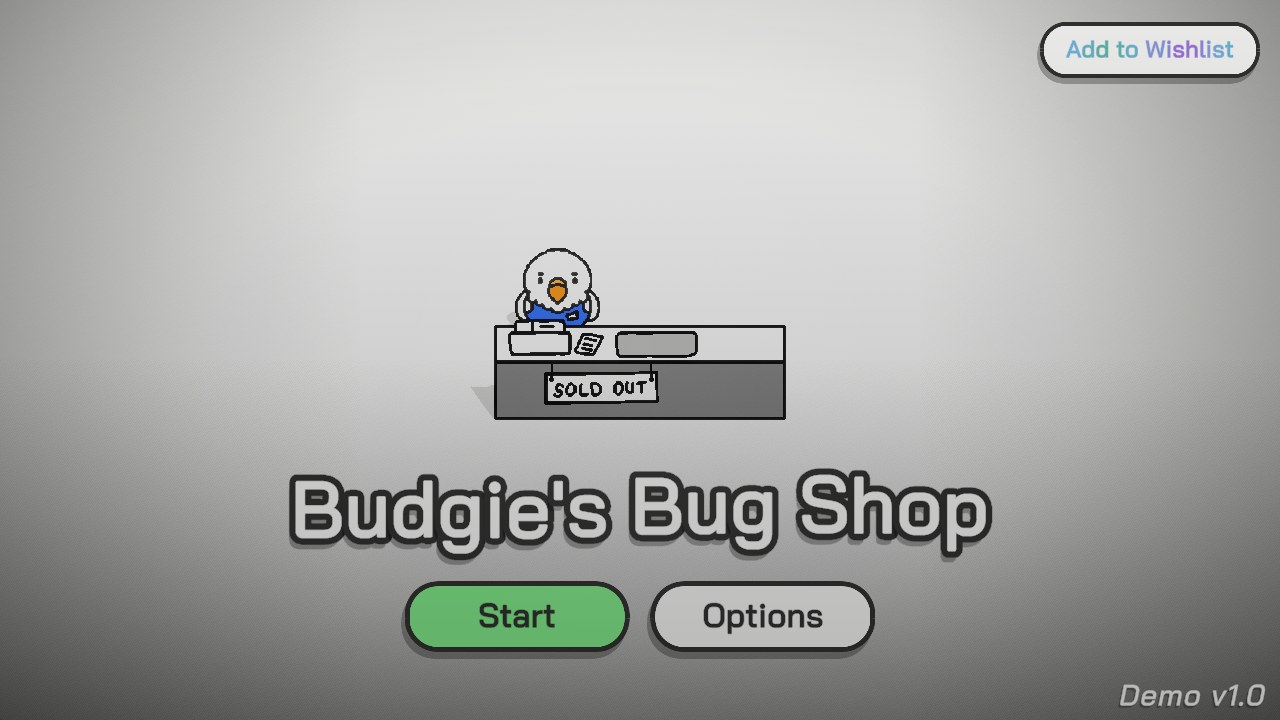
Budgie's Bug Shop Demo is a short incremental shop game about catching insects and selling requested stock to budgie customers. The reviewed build moves between a bright counter scene and timed catching locations. Money earned at the counter returns to the same loop through upgrades, location fees, and location levels.
The public demo is credited to Ricardo Escobar through the Glumleaf profile, while the local Unity metadata names Moon Lagoon and product version 0.1.0. Those names support attribution, but the available sources do not establish a larger staff list. The page therefore credits only identities directly connected to the release and package.
This is a demo systems guide, not a promise about a later full game. Reviewed footage supports customer orders, inventory counts, timed catching, named upgrade categories, and several location cards. It does not support manual pricing, employee scheduling, storage limits, a conventional game-over state, or claims about features outside this build.
How Budgie's Bug Shop Demo Works
- Read the opening location tutorial, then enter an available catching field. Each location has its own bug set, entry costs, unlock state, and level progress.
- Use the pointer to position or draw the translucent catching net over moving bugs before the timer expires. Collected species and quantities become shop inventory.
- Return to the counter and inspect the customer order cards. Fulfill requests that match owned bugs to convert inventory into cash, then decide whether the next investment should improve catching, shop throughput, or access to another location.
- Repeat the cycle without treating Time's Up as defeat. It closes one catching attempt and returns the player to restart or shop choices while the broader progression remains available.
Controls
- Pointer menus: Click shop buttons, customer orders, inventory, upgrade categories, location cards, restart, and return-to-shop actions.
- Catching net: Use pointer movement and click-drag interaction in the catching square to position the rectangular net over moving bugs.
Shop, Catching, and Progression Systems
Customer orders
Order cards request a visible bug and show a cash payment. Completing a supported request removes it from the queue and adds money; the evidence does not show free-form price setting.
Timed catching
Bugs move inside a dotted field while the round timer runs. Time's Up ends that attempt, after which Quick Restart and Go to Shop keep the incremental loop moving.
Inventory and sales
Owned bug quantities are visible in the shop and inventory interface. Those bugs are sale stock for customer demand, but no reviewed source establishes a storage cap or shelf-placement mechanic.
Upgrade categories
Visible menus include Marketing, Training, Expansion, Size, Time, and Experience. Costs and current/next values appear in the interface, so compare the shown effect before committing cash.
Location unlocks and levels
Grass Patch is joined later by locations such as Sunny Garden and Mimic Meadow. Unlock and entrance fees govern access, while a location level increases spawn count and the base price of species found there.
Budgie's Bug Shop Demo Systems Guide
Based on the first-party demo description, local Unity metadata, and reviewed frames covering the location tutorial, customer shop state, timed catching boundary, and later location progression.

Guide Overview
The useful planning unit is one complete business cycle, not one bug or one purchase. A cycle begins by checking demand, continues through a timed field, and ends when caught stock becomes fulfilled orders or a progression investment.
This guide names only systems visible in the demo. It does not assume manual prices, shop decoration rules, keyboard shortcuts, persistent saves, or features advertised for a later release.
1. Read demand before entering a field
Begin at the counter by inspecting the customer queue and current inventory. Order cards identify a requested species and a displayed payment, so they provide a concrete target for the next catch instead of asking the player to gather every bug equally.
Also check the next unlock, entrance fee, or upgrade cost. A field trip is more useful when it has a budget purpose: fill one scarce order, reach a location fee, or test whether a named upgrade changes the next cycle.
Warning: Do not describe the order payment as a player-set price; no manual pricing interface was observed.
2. Use the catching timer as a collection budget
Inside the dotted catching square, steer or draw the translucent rectangular net over moving bugs. The species list and quantities at the lower right provide immediate feedback about what has entered inventory.
Prioritize species connected to visible customer demand, then use remaining time for broadly useful stock. When Time’s Up appears, the catching attempt is complete, but the demo itself is not over.
Warning: Do not abandon a cycle as though the timer caused game over; Quick Restart and Go to Shop remain available.
3. Convert inventory into specific sales
Return to the shop and compare owned quantities with the order cards. Fulfill supported requests to turn captured bugs into cash. This is a demand-matching system: inventory has value because a budgie is asking for that species.
After each sale, re-read the queue rather than assuming the next customer wants the same item. The footage supports repeated orders but does not establish unlimited storage, automatic wholesale sales, or shelf stocking.
Warning: Do not spend bugs without checking whether a more valuable or progression-relevant order currently needs them.
4. Compare named upgrade categories
Open the upgrade interface and distinguish Marketing, Training, Expansion, Size, Time, and Experience. Entries show costs and some current-to-next values, allowing a purchase to be tied to a visible effect rather than an icon guess.
Choose investments according to the bottleneck observed in the previous cycle. A catching limitation and a customer-flow limitation are different problems, even when both ultimately affect cash.
Warning: Do not invent precise formulas from small numbers or claim every category changes sale value.
5. Unlock and level locations deliberately
Locations require unlock and entrance fees and introduce different bug sets. Later reviewed play reaches Sunny Garden and Mimic Meadow beyond the opening Grass Patch, showing that location access is a central progression track.
Location levels matter independently of shop upgrades. The tutorial states that leveling raises the number of bugs that spawn and the base price of species found there, making a familiar field more productive as well as opening new fields.
Warning: Do not spend the entire cash balance on upgrades when the next location fee is the actual progression target.
Common Demo Mistakes
- Do not sell mentally from the catching screen. Check actual inventory and the current order queue before deciding which species needs another round.
- Do not read Time's Up as a run-ending failure. Use the result as a cycle boundary and choose whether a restart or shop visit better serves the next purchase.
- Do not label every upgrade by its icon alone. Use the category name and displayed current/next values because different investments affect different parts of the loop.
- Do not spend all cash while ignoring the next location fee. A strong shop upgrade can still delay access to a new bug set if it consumes the unlock budget.
Browser Notes
The embedded game is a Unity WebGL demo with a 1024 by 576 pixel-art canvas that scales inside the browser player.
Click inside the game before using pointer controls. The wrapper reacts to tab visibility, but the evidence does not prove that every timer pauses when the tab is hidden.
Keyboard shortcuts, save persistence, and reliable touch ergonomics were not verified. This guide documents only pointer interactions visible in the reviewed build.
Game Credits
- Ricardo Escobar - public page author
- Glumleaf - developer profile
- Moon Lagoon - local Unity company metadata
Credits & Fan Site Disclaimer
This is an unofficial fan-operated page created for game information, discussion, and independently reviewed guide content.
Budgie's Bug Shop and its original game assets belong to Ricardo Escobar, Glumleaf, Moon Lagoon, and the respective rights holders. This website is not affiliated with, endorsed by, or sponsored by the game's creators.
Budgie's Bug Shop Demo FAQ
What is the main loop in Budgie's Bug Shop Demo?
Catch bugs during timed location rounds, return to the shop, fill customer orders from inventory, and invest the cash in upgrades or location progression.
Does Time's Up end Budgie's Bug Shop Demo?
No. Time's Up ends the current catching attempt. The player can restart the location or return to the shop while inventory and broader progression continue.
Can players set bug prices manually?
No manual pricing system was verified. The reviewed shop shows customer order cards with requested bugs and displayed payments.
What controls are verified?
Pointer clicks operate the menus and orders, while pointer movement or click-drag interaction positions the catching net. No keyboard mapping was verified.
Is this the official game website?
No. This is an unofficial fan-operated page with independently reviewed demo information.